
Overview

Private Workflows operate in the production environment, enabling real-time automation and execution. Below is a sample implementation of Private Workflows once you have embedded it into your platform. Creating a Private Workflow Since Private Workflows are designed to be live, any modifications are made in draft mode before being published. Users can:
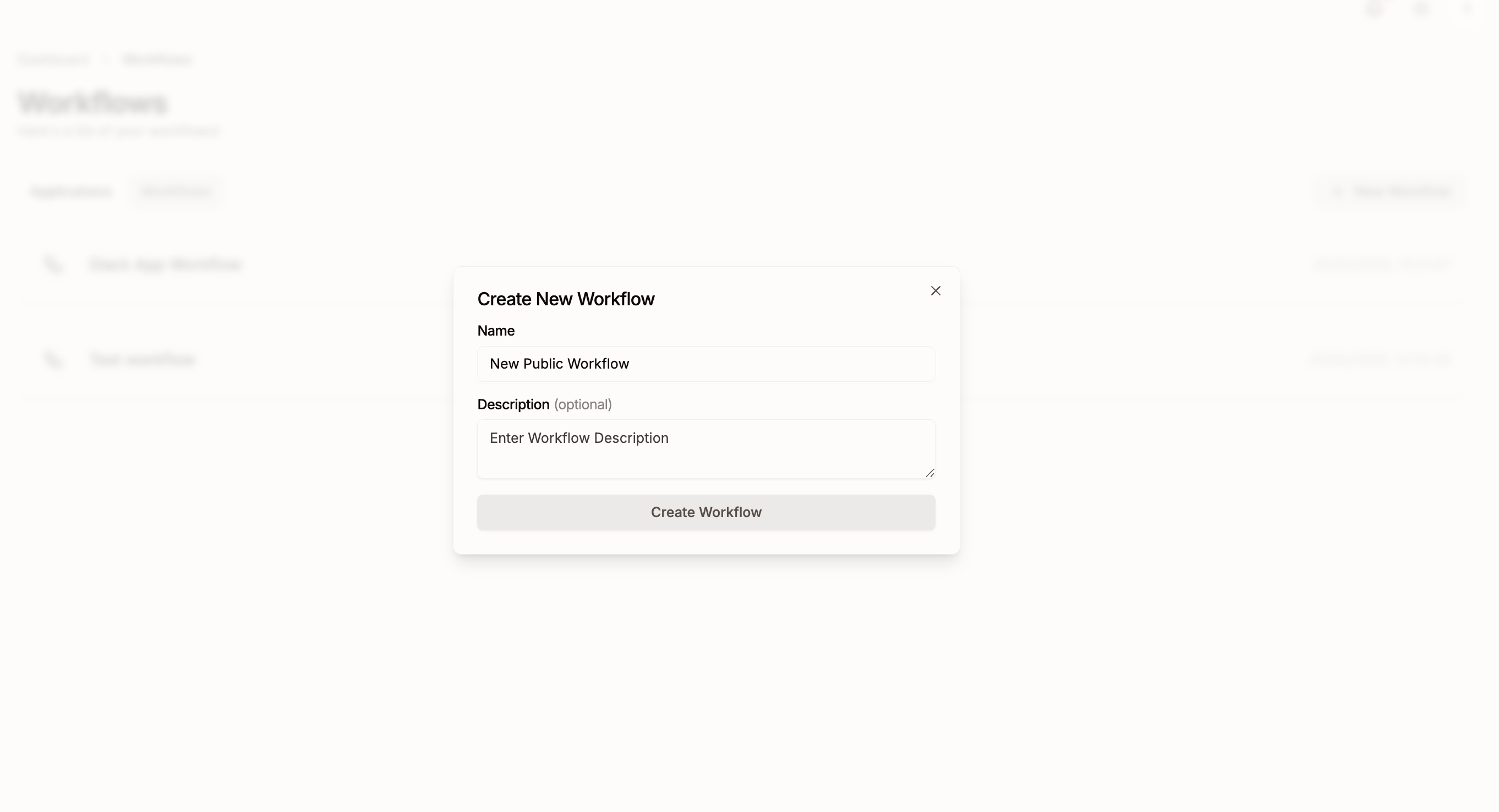
  • Edit the workflow in draft mode.
  • Test changes using Workflow Testing.
  • Publish the draft to update the live workflow.
Once published, the new workflow state becomes live, ensuring seamless execution.

Private Workflow Types

Private Workflows can be created at two levels:
Created when a user authenticates with an integration (e.g., Salesforce, HubSpot).These workflows are tied to the specific app’s linked account.Public App Workflows
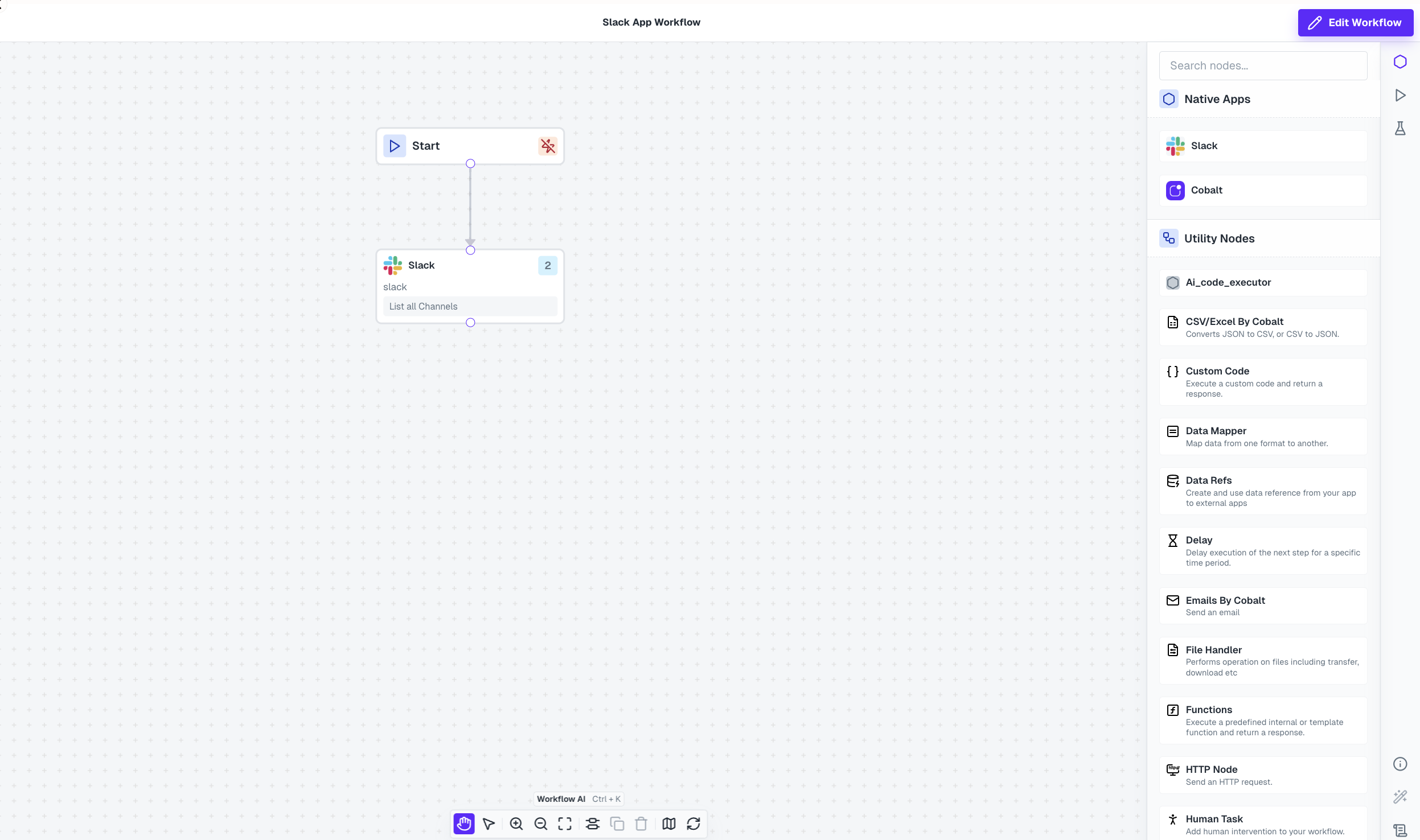
These are not linked to any specific integration and are used for internal automation on Cobalt account level.Public Internal Conductor Workflows
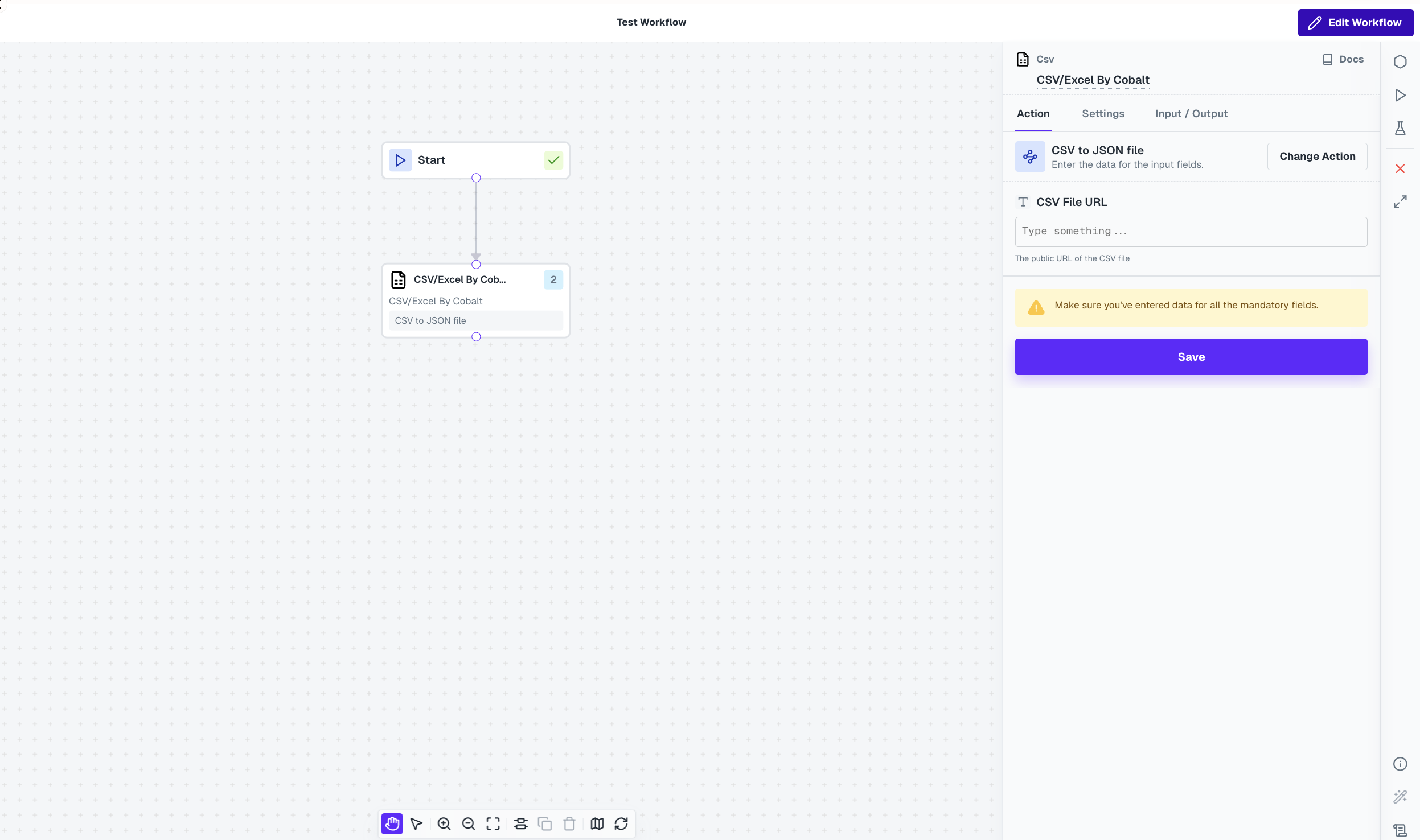
Embed Private Workflows

To embed the Private Workflow into your platform, use the following iframe:
<iframe
    src={ `https://app.gocobalt.io/workflows/${ workflowId }?token=${ cobaltSessionToken }` }
    height="100%"
    width="100%"
    style={{
        border: "none",
    }}
/>
You need to provide the Workflow Id and Session Token.

Creating Private Workflows

To create a Private Workflow, simply use Cobalt’s API
Create Private Workflow
curl --request POST \
  --url https://api.gocobalt.io/api/v2/public/workflow \
  --header 'Content-Type: application/json' \
  --header 'Authorization: Bearer {Session_token}' \
  --data '{
  "name": "<string>",
  "slug": "<string>",
  "description": "<string>"
}'
Learn more about the Create Private Workflow API here.
To create a draft or editable version of the workflow, use the following cURL:
Create Draft version
curl --request GET \
  --url https://api.gocobalt.io/api/v2/public/workflow/:workflow_id/edit \
  --header 'Authorization: Bearer {Session_token}' \
Learn more about the Create Draft of Workflow API here.

Editing and Publishing Private Workflows

To modify a workflow, follow these steps:
1

Navigate to Edit mode

Click on the + Edit Workflow button.Edit a Private Workflow
2

Update and Publish

Make the required changes in the workflow while you are in Edit mode and click Publish to make the workflow live.
User config is not available in Private Workflows, so dataslots or mapping selected by the user cannot be used in workflows.
3

Save as Draft

If you do not wish to publish the changes, click Cancel, and the live workflow remains unchanged, while your changes are saved as draft.
Draft workflows persist until they are published, allowing users to return and modify them anytime before finalizing.

Executing Private Workflows

Private Workflows are triggered just like regular workflows in Cobalt. The execution depends on the event selected in the Start node. Once live, the workflow runs based on its configured triggers, ensuring seamless automation.