

There are various types of Logs that you can see in Refold:Documentation Index
Fetch the complete documentation index at: https://docs.refold.ai/llms.txt
Use this file to discover all available pages before exploring further.
Execution Logs
Execution Logs is able to provide various details about a workflow that was executed. With features such as detailed execution details and request/response data, workflow logs enable users to gain deeper insights into the execution process and ensure optimal performance. To view the Logs, navigate toLogs in Refold and check the Executions tab.
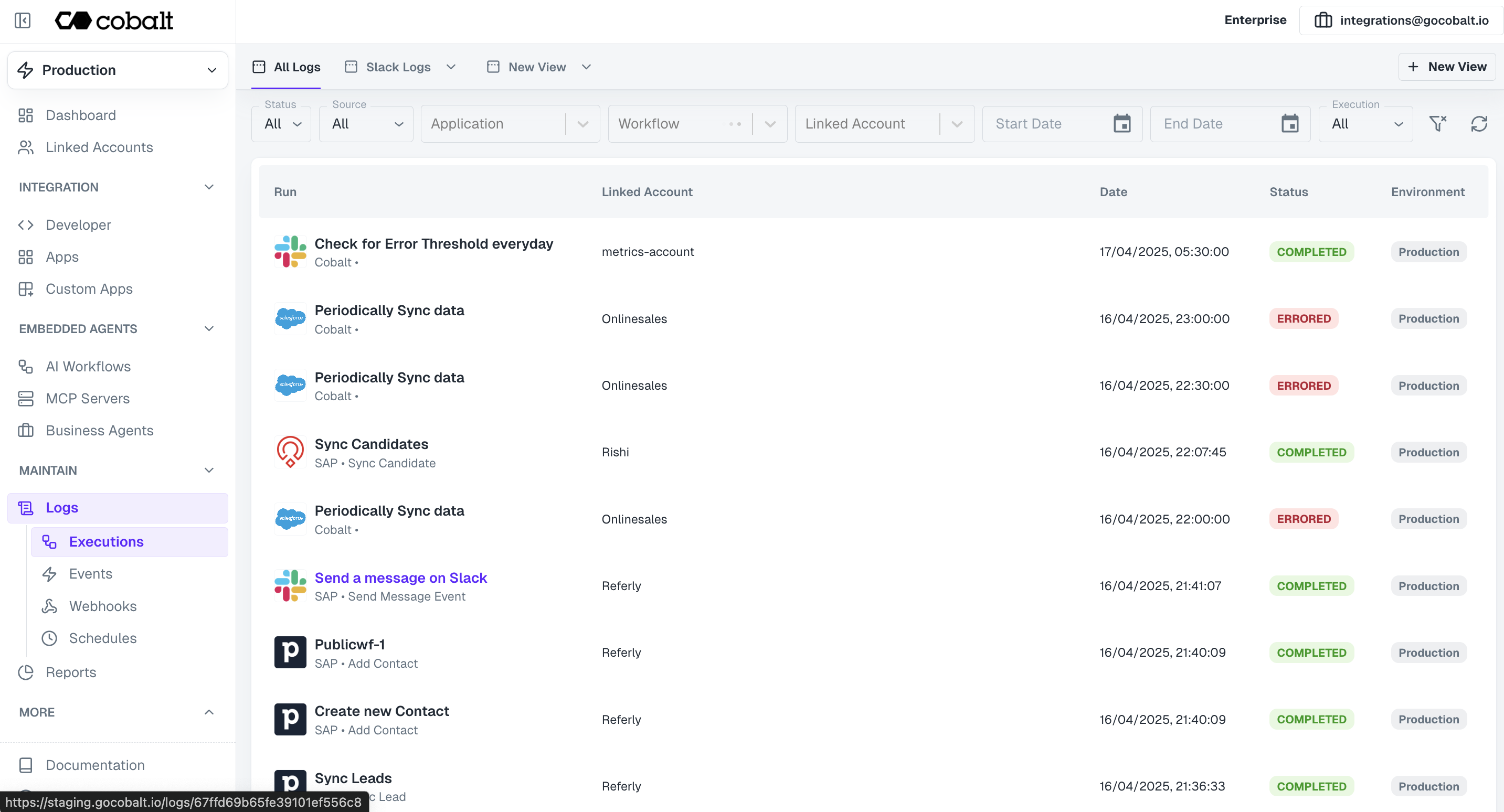
To learn more about Try API and how it can be used, refer to our guide here.
Logs Views
Logs views
Logs views
For your Execution Logs, you can also create your own Custom Views with a set of filters already applied to it.To create a View, click on 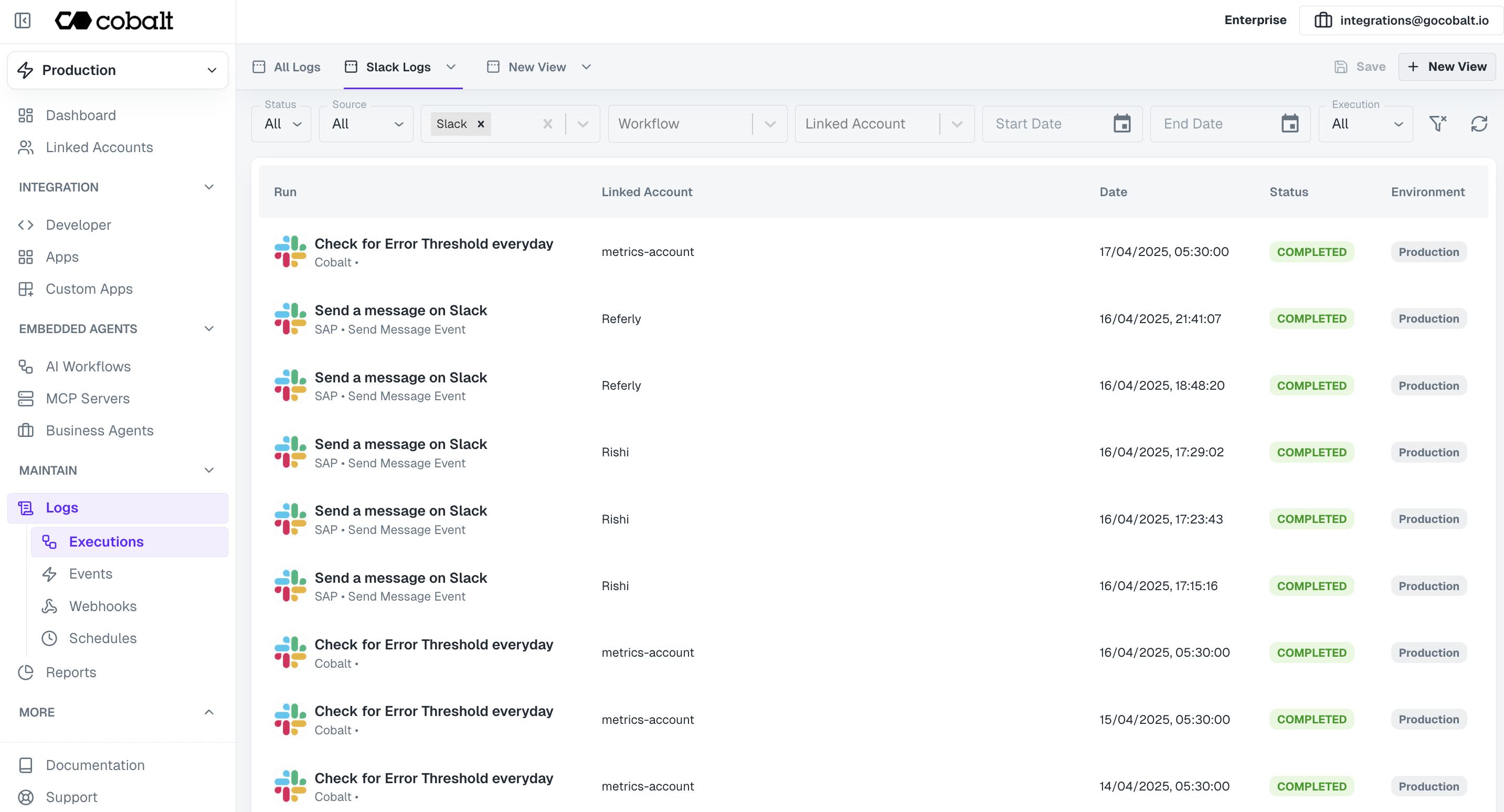
+New View button in the top right corner of Execution Logs screen.Save in the top right corner.Node Activity Details
Node Activity Details
Node Activity Details
By clicking on a workflow log, users can view the activity of individual nodes present in the workflow.This includes information about the status or errors encountered by each node, response etc. providing insights into the execution flow and potential points of failure.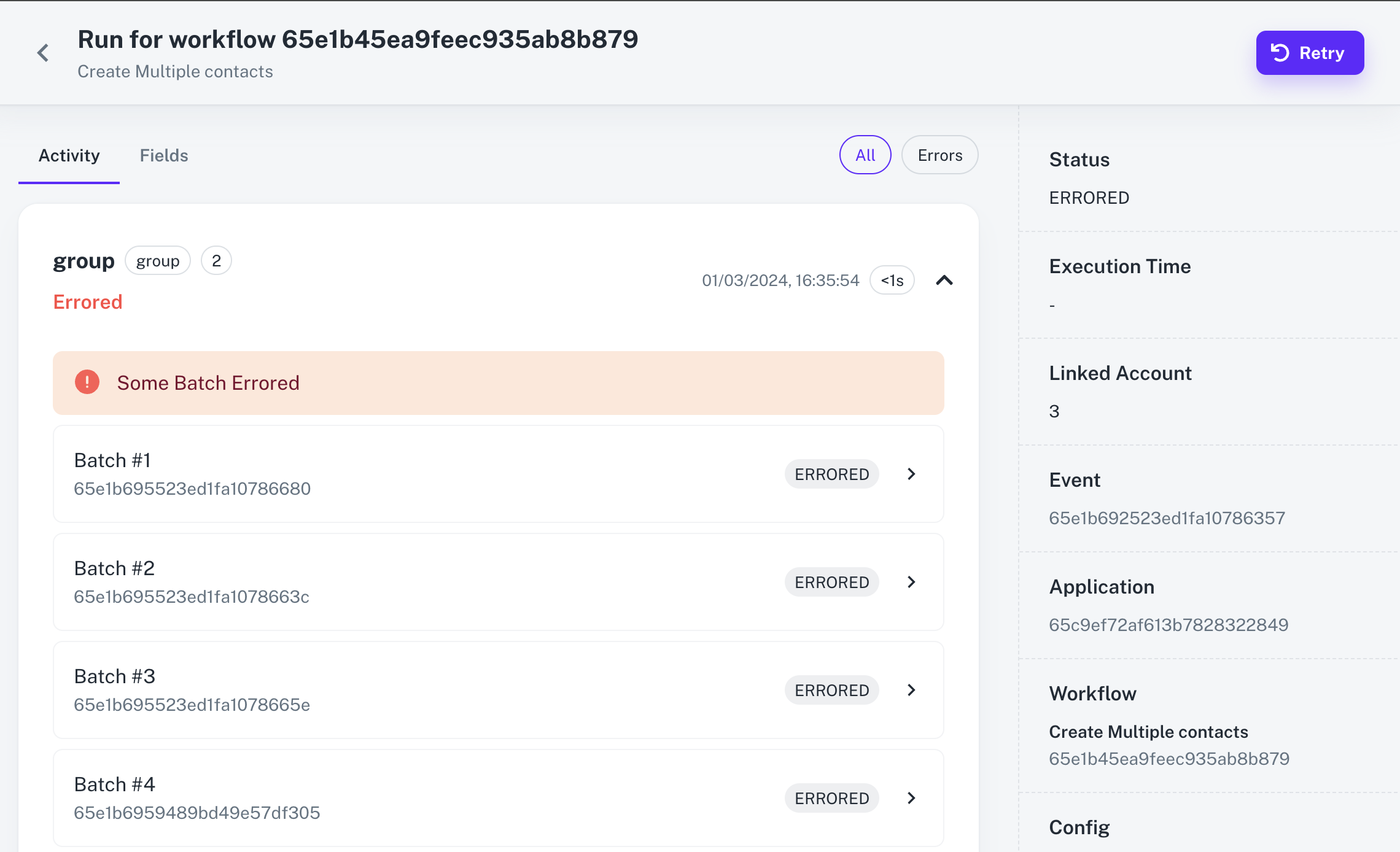
Replay & Retry Functionality
Replay & Retry Functionality
Replay & Retry Functionality
For workflows that encounter errors, users have the option to retry complete execution by clicking on the 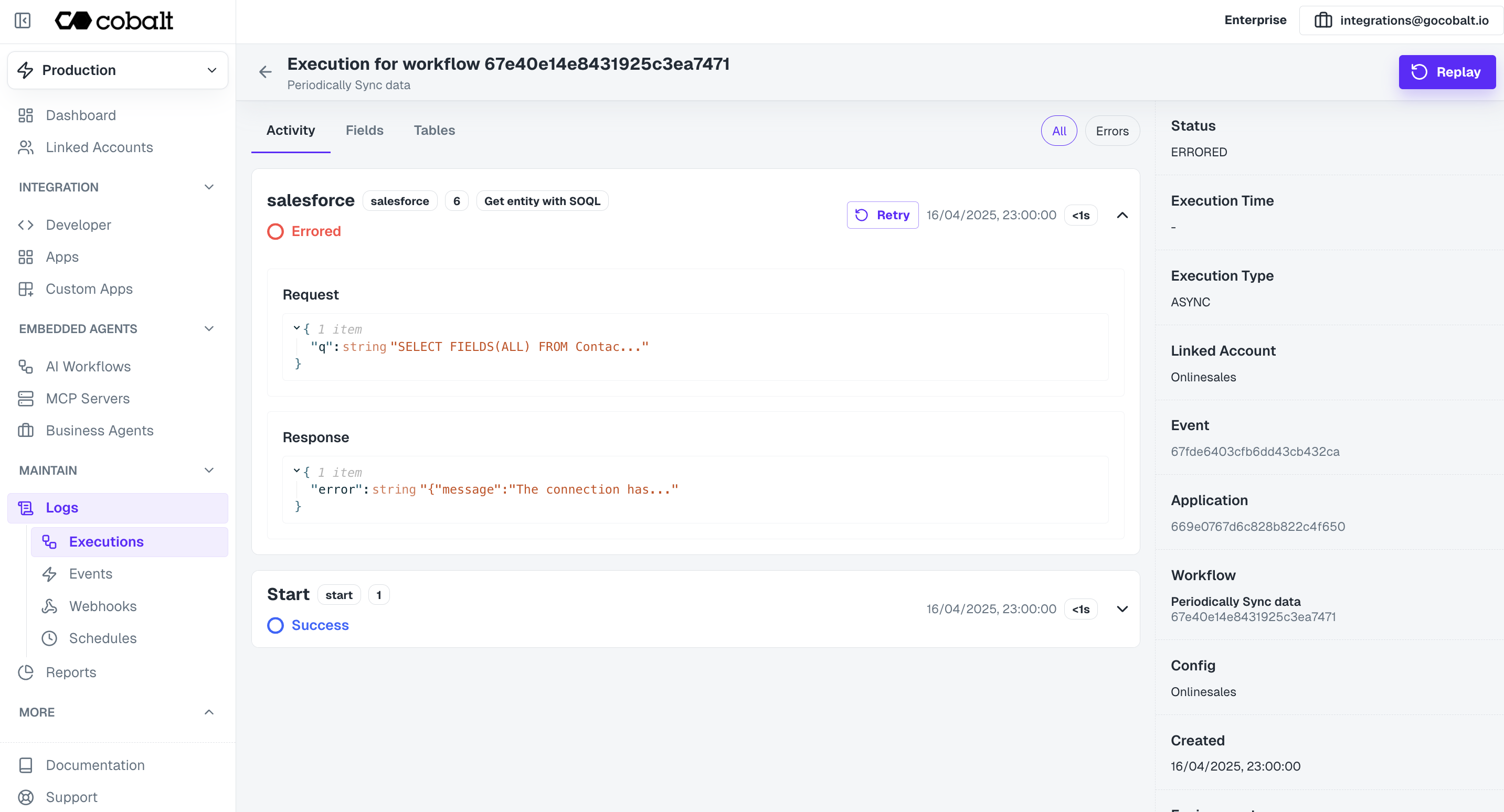
Replay button in the top right corner or individually running an errored node again by clicking on Retry.The Replay functionality is limited to a single attempt.
Event Logs
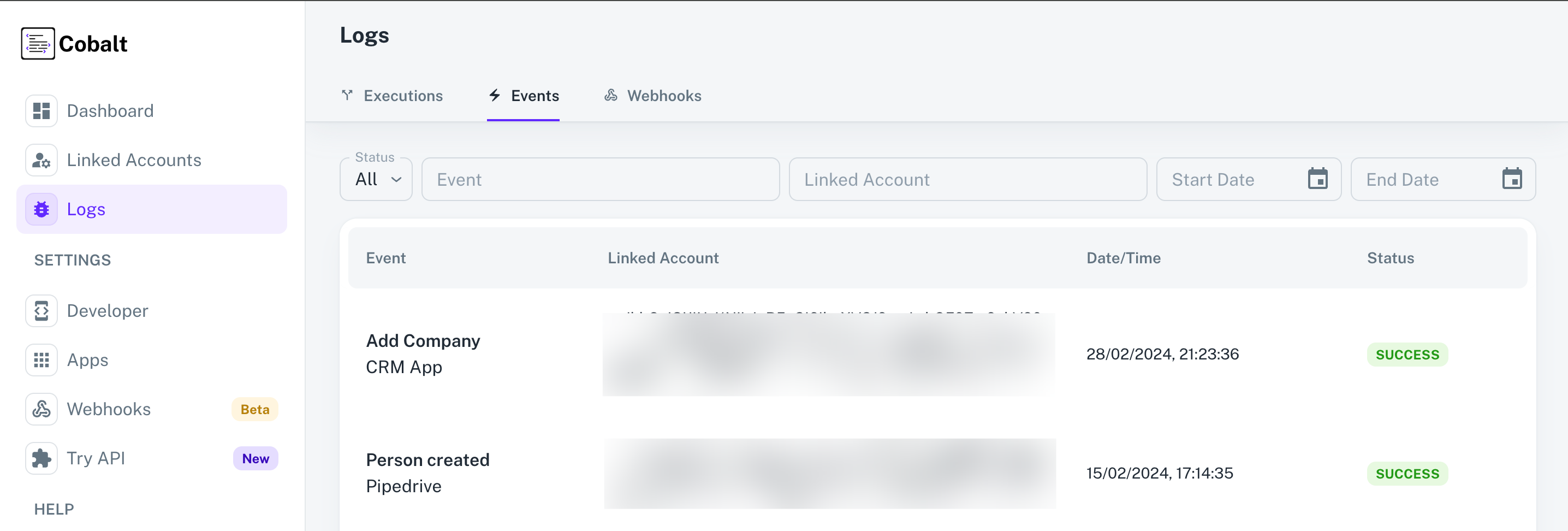
Event logs in Refold provide information about the triggers and events called.To learn more about Event in Refold, refer to our guide here.
Logs section in Refold and select the Events tab.
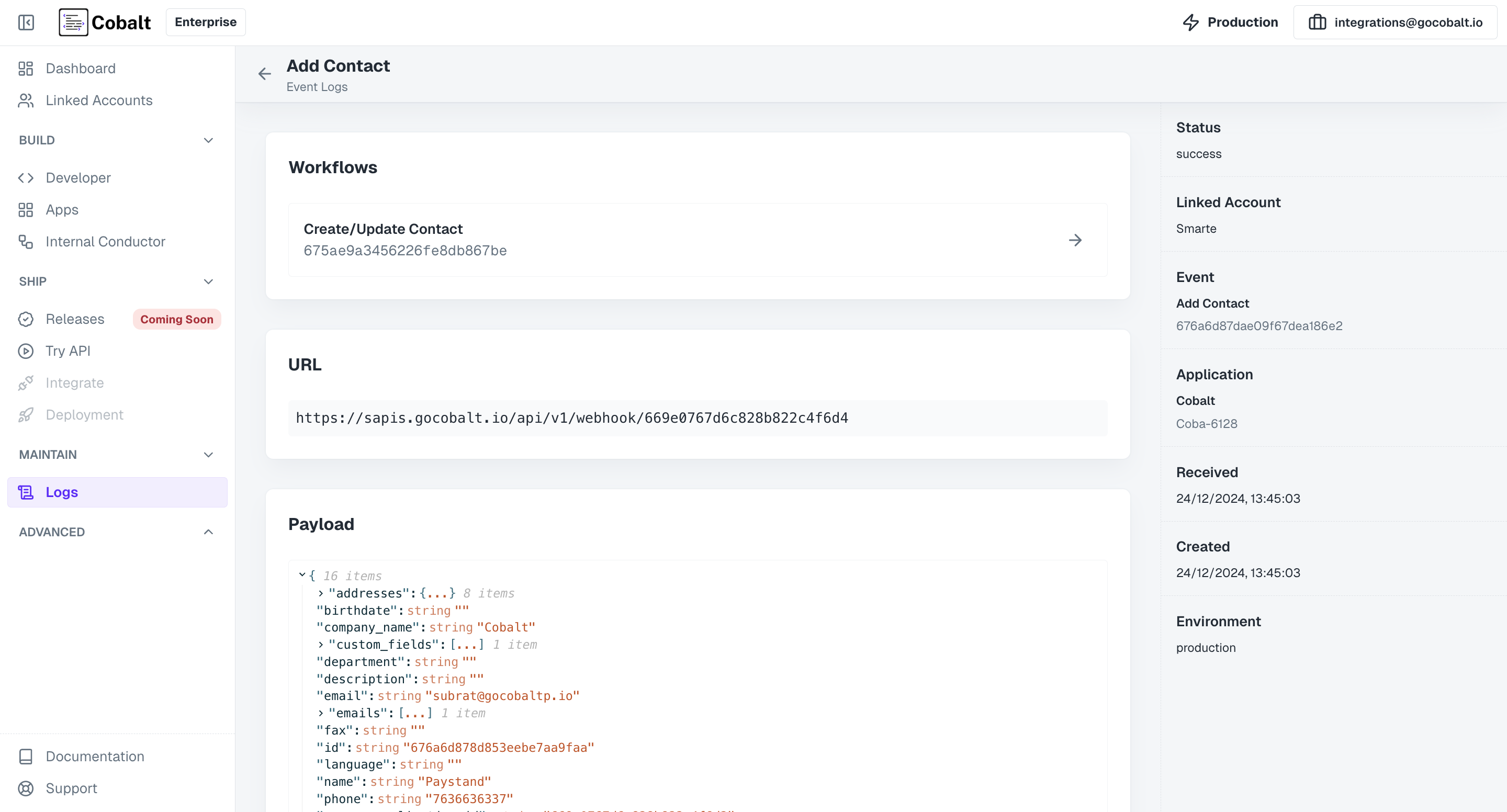
Workflows that got executed on Event call, the Event URL and the Payload that was sent in the event.
The Workflows section will not be visible if there was no Workflow that was associated with the event.
Webhook Logs
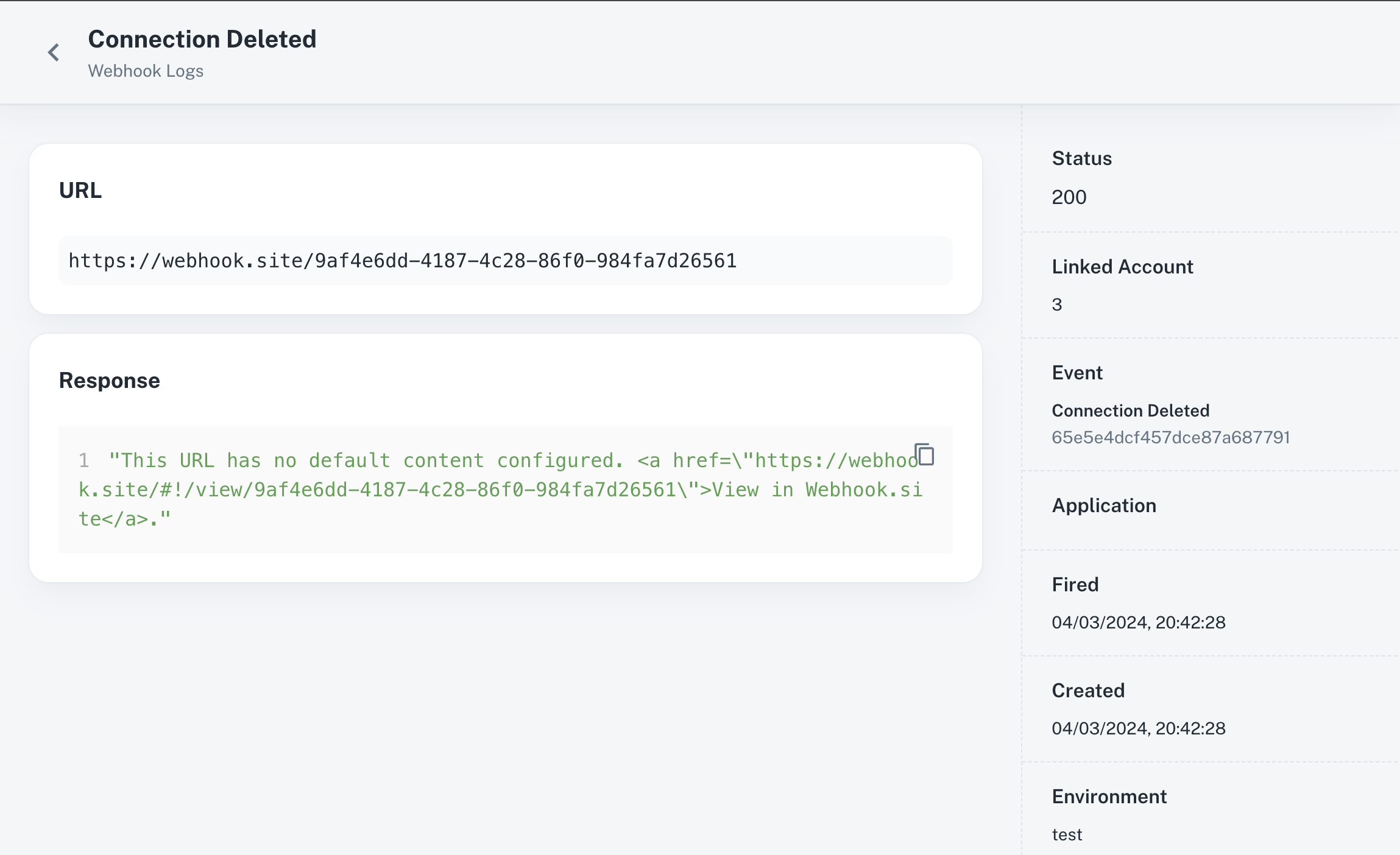
Webhook logs allows users to monitor the execution of webhooks subscribed to in Refold. Webhook logs provide detailed information about each webhook event, including its Execution status, Linked Account ID, fired date and more. To access the Webhook Logs, navigate to theLogs section in Refold and select the Webhooks tab.
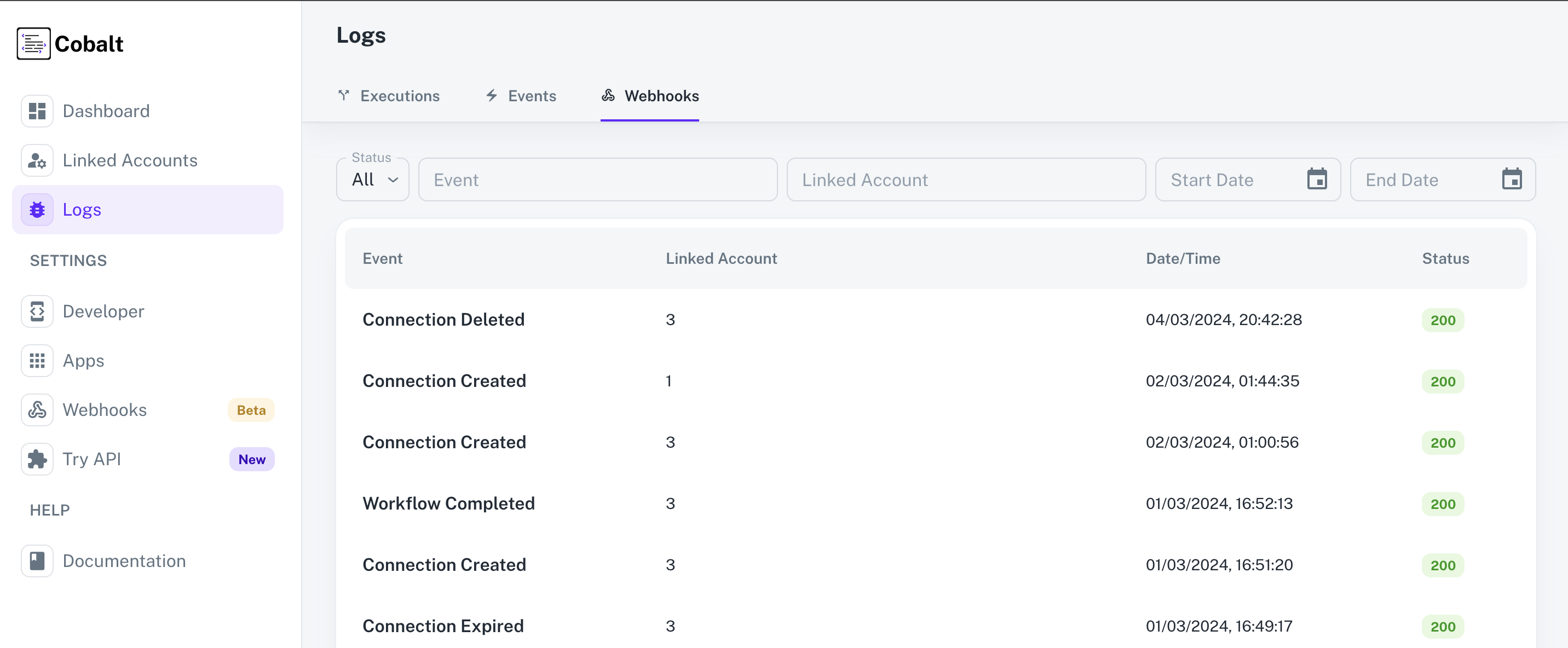
To learn more about Webhooks in Refold and how they can be subscribed, refer to our guide here.
Schedule Logs
Schedule Logs provide users with visibility into scheduled workflows and their associated details. To access the Schedule Logs, navigate to theLogs section in Refold and select the Schedules tab.
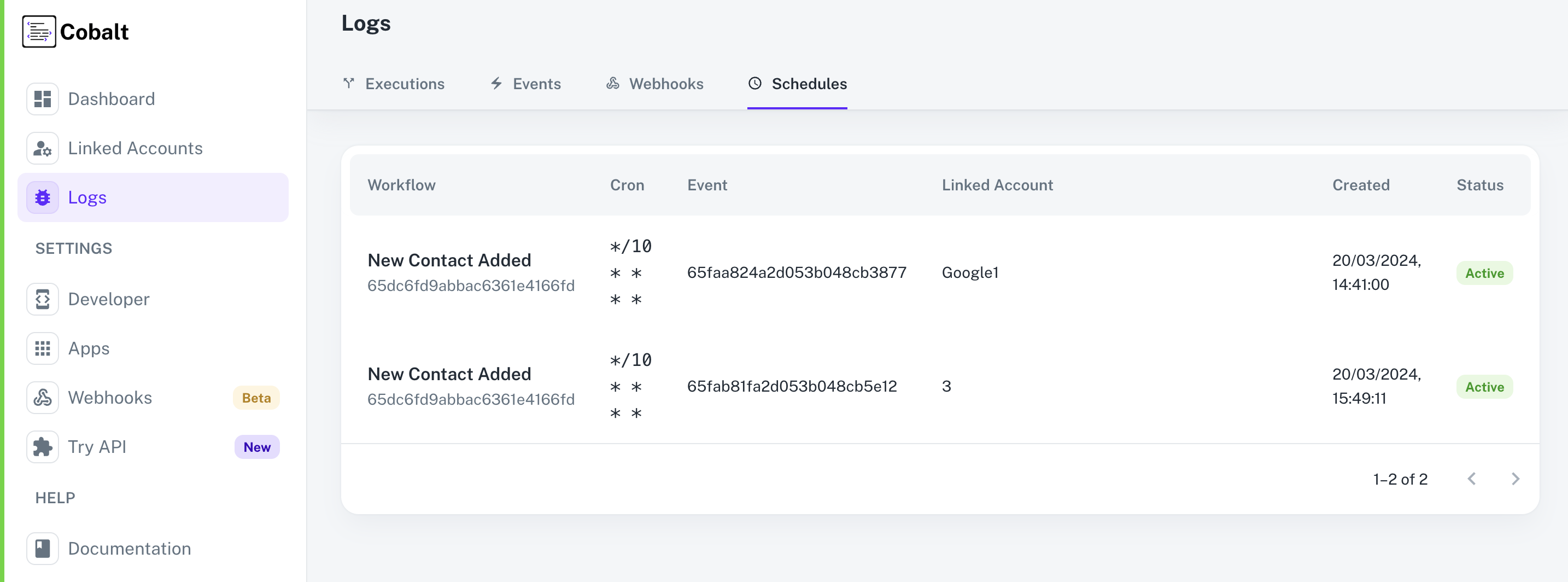
Workflow Name and ID
Identifies the workflow scheduled for execution.
Schedule Cron
Specifies the cron expression defining the schedule for workflow execution.
Event
Indicates the Event ID triggering the scheduled workflow.
Status
Reflects the current status of the scheduled workflow, either Active or Inactive.