Pre-requisites
- Slack App is enabled in Cobalt.
- Slack OAuth app credentials added to Cobalt. Refer here.
- Trigger created in Cobalt. Refer here.
- Linked Account available. Refer here.
Building a Workflow
1. Create Workflow in app
- Go to your
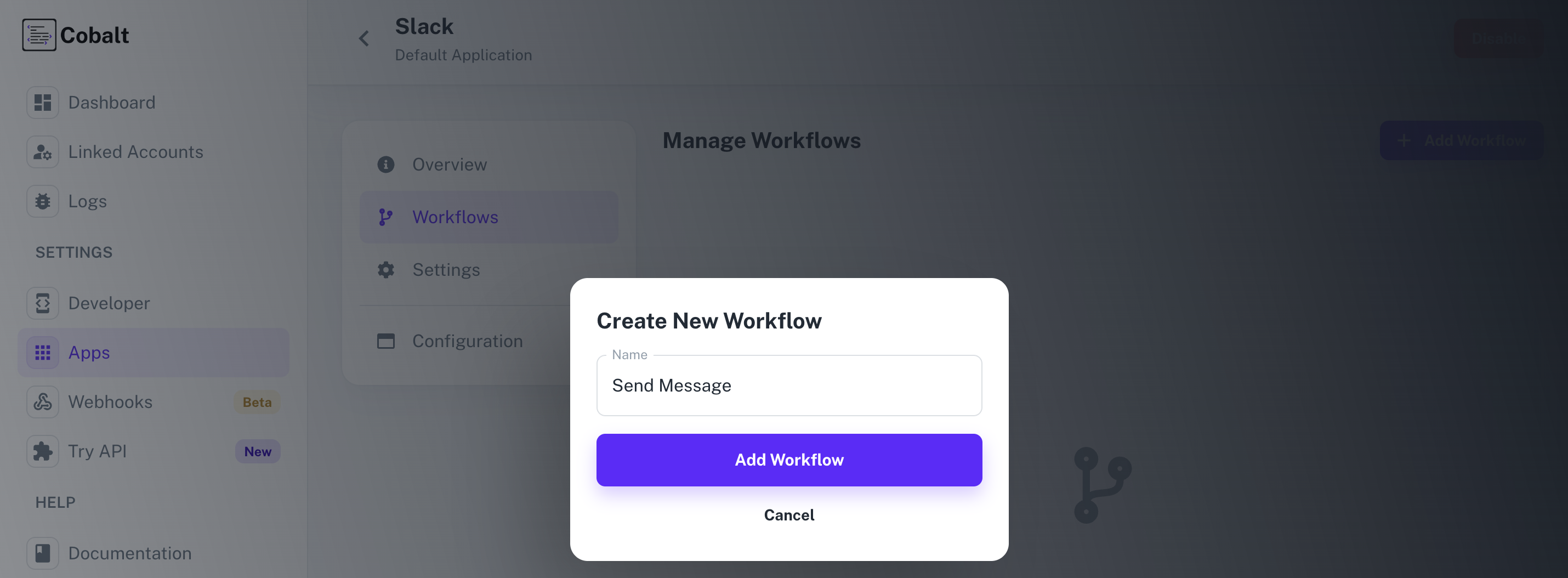
Apps catalog in Cobalt > Search for Slack > Workflows > Add Workflow > Choose Manually > Give it a name and click on Add Workflow.
2. Adding the Trigger
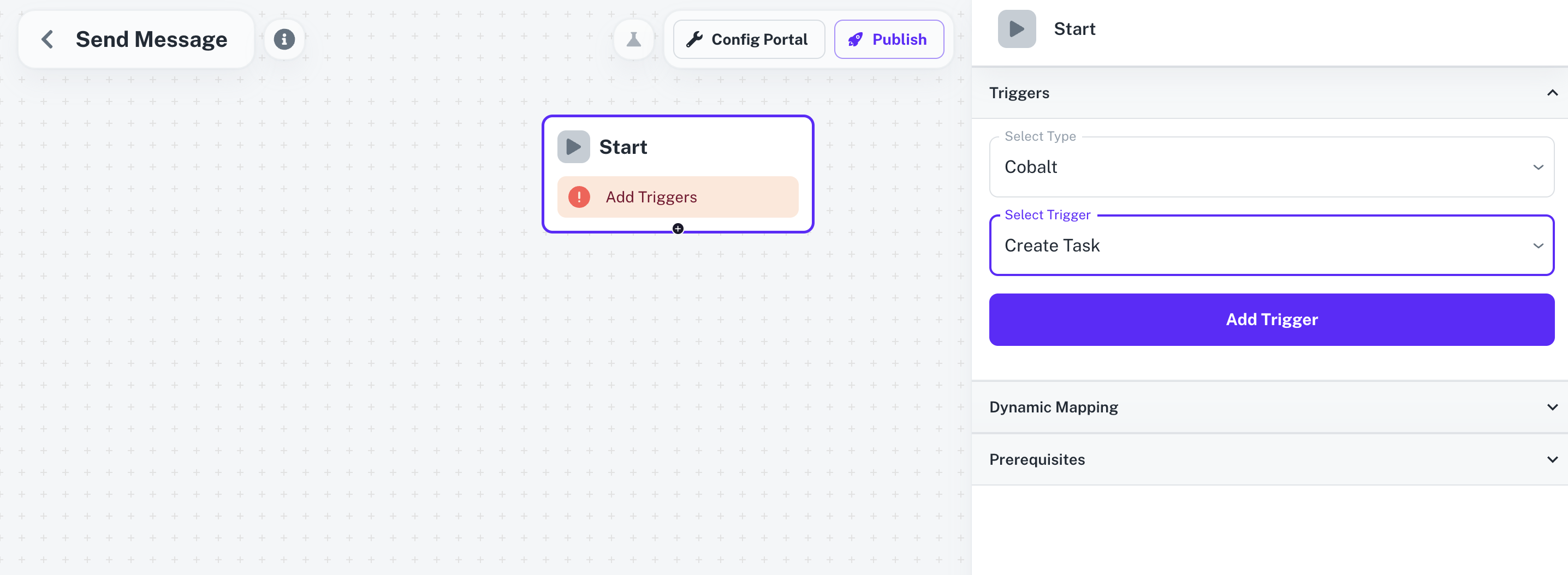
To add a trigger for a Workflow in Cobalt, you need to select details about the Trigger like the Type and which trigger to be implemented.
To add a Trigger, follow these steps:
- Click on the Start node to add a trigger.
- In the right side, select the Type and the Trigger and click on the
Add Trigger button.
3. Adding the Slack Action
- From
Actions, add a Slack node to the workflow.
- Click on the node and select an Action from the
Choose an Action dropdown menu.
- Since we will send a message to a channel or a user through the action, provide a
User or Channel ID and click on Save.
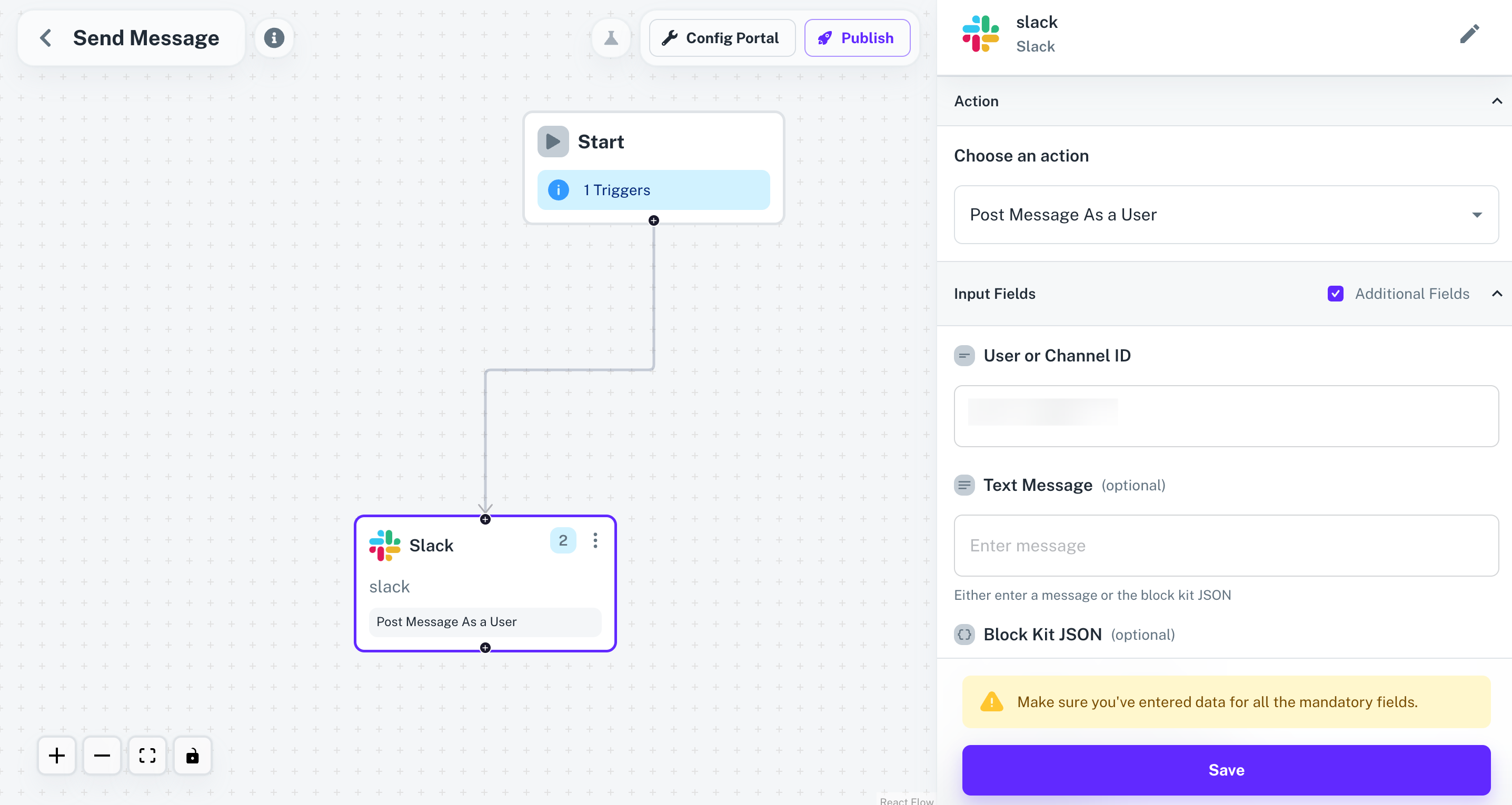
Before clicking on Save, make sure that you have entered data for all the mandatory fields whichever required.
- Connect the two nodes by clicking on
+ button on the Start node and dragging the arrow to the Slack node.
4. Publishing the Workflow
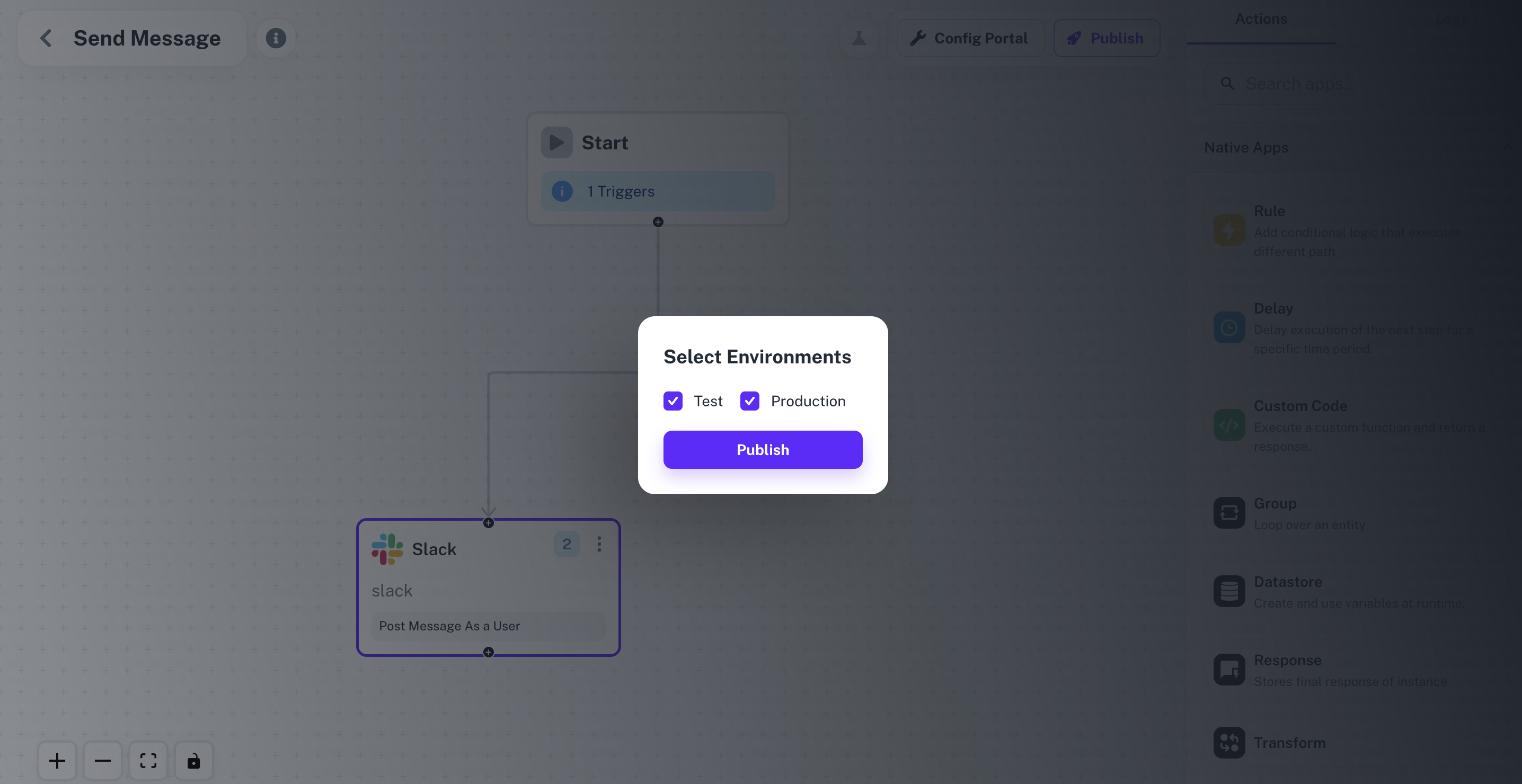
- To publish the workflow, click on the
Publish button in the top, Select Environments of the Workflow and click on Publish.
Enabling the Workflow
To enable a workflow, end user or a Linked Account needs to Toggle On the Workflow after connecting with the application.
- Navigate to the Linked Account in which the Workflow needs to be enabled by getting its’ Hosted URL.
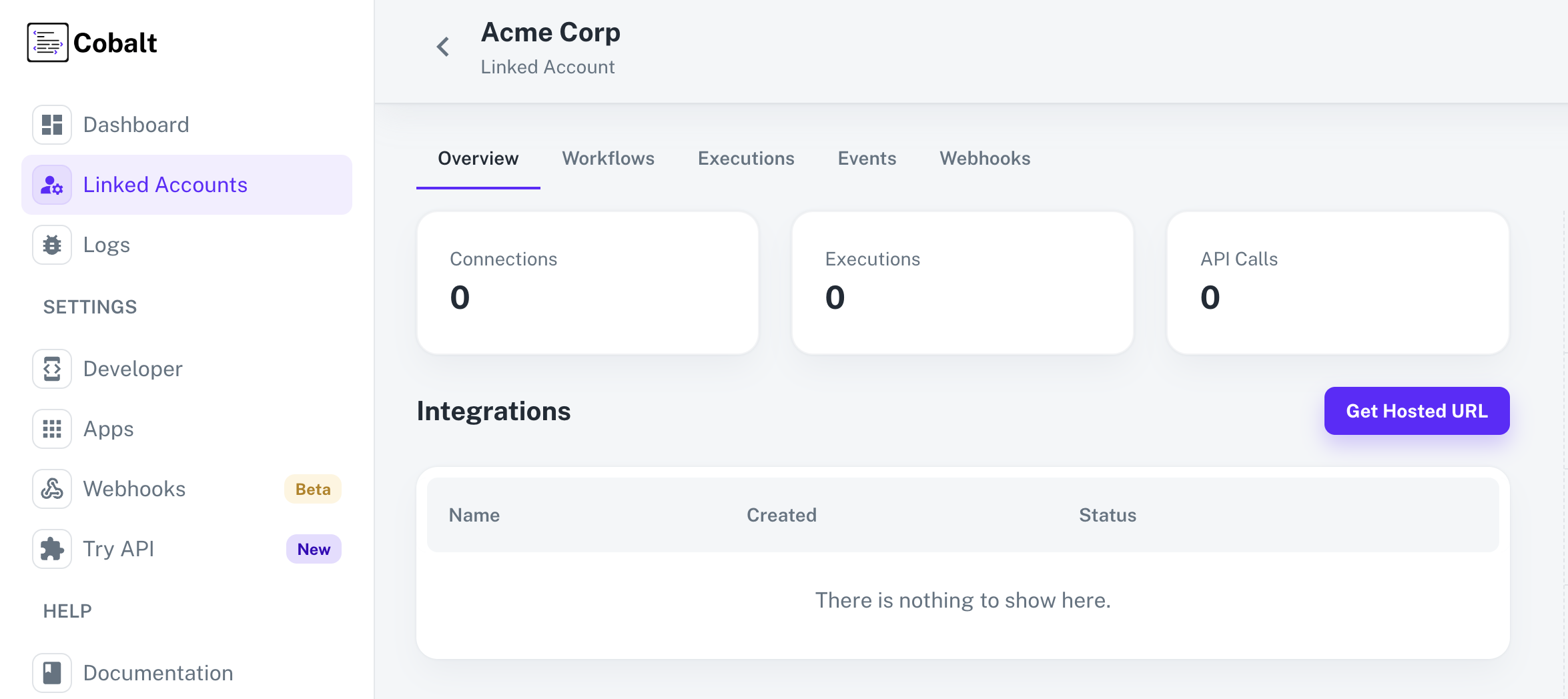
- Go to the Hosted URL and select Slack from
Manage your Integrations list.
- Click on the
Connect button, review the permissions and allow them for a successful connection.
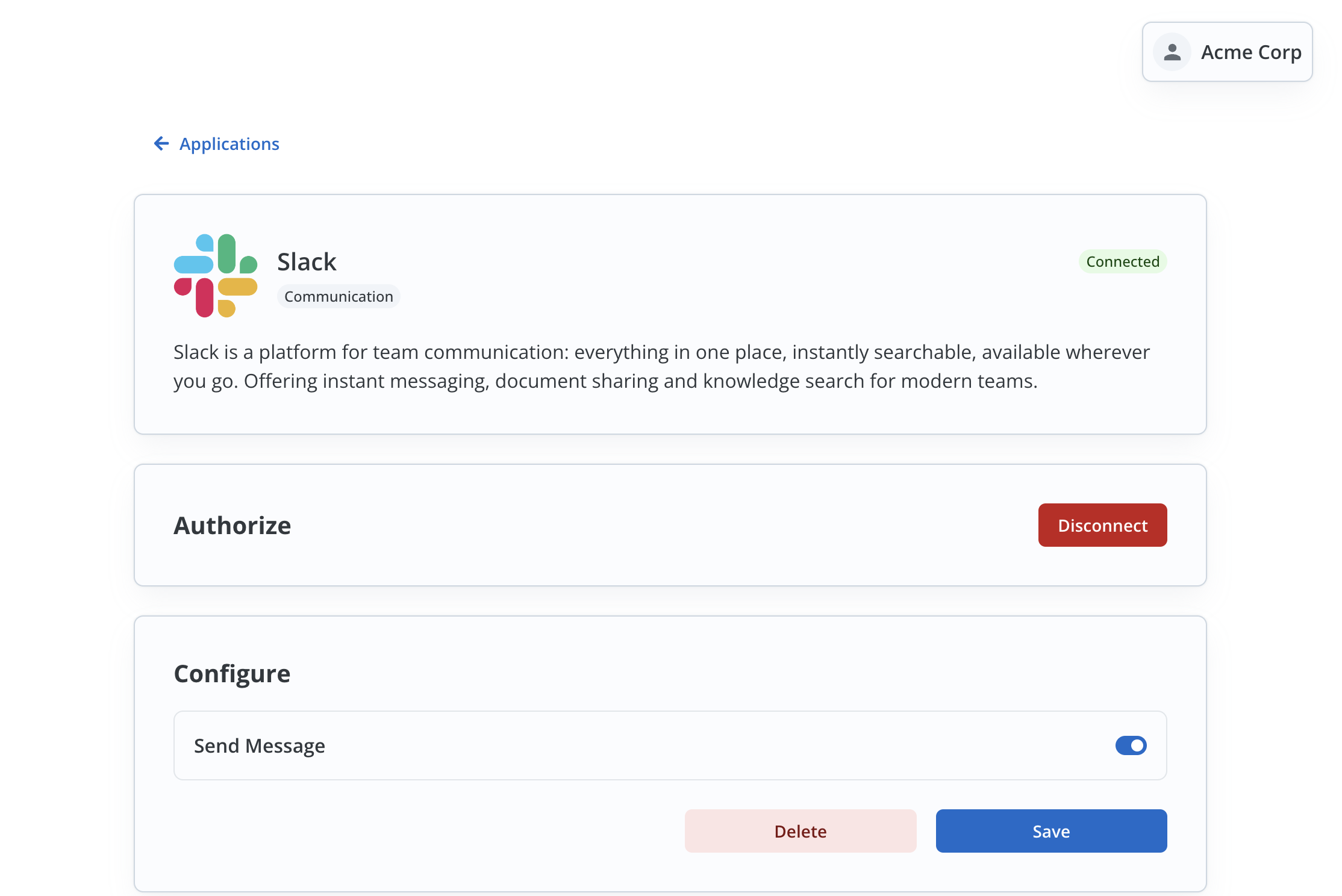
- After a successful connection, you can see the
Configure section in the Slack Application page.
- Enable the Workflow Send Message by turning the toggle On and click on
Save.
Fire an App Event
Lastly, we’ll fire an App Event whenever a contact is created in your app by using the Workflow.
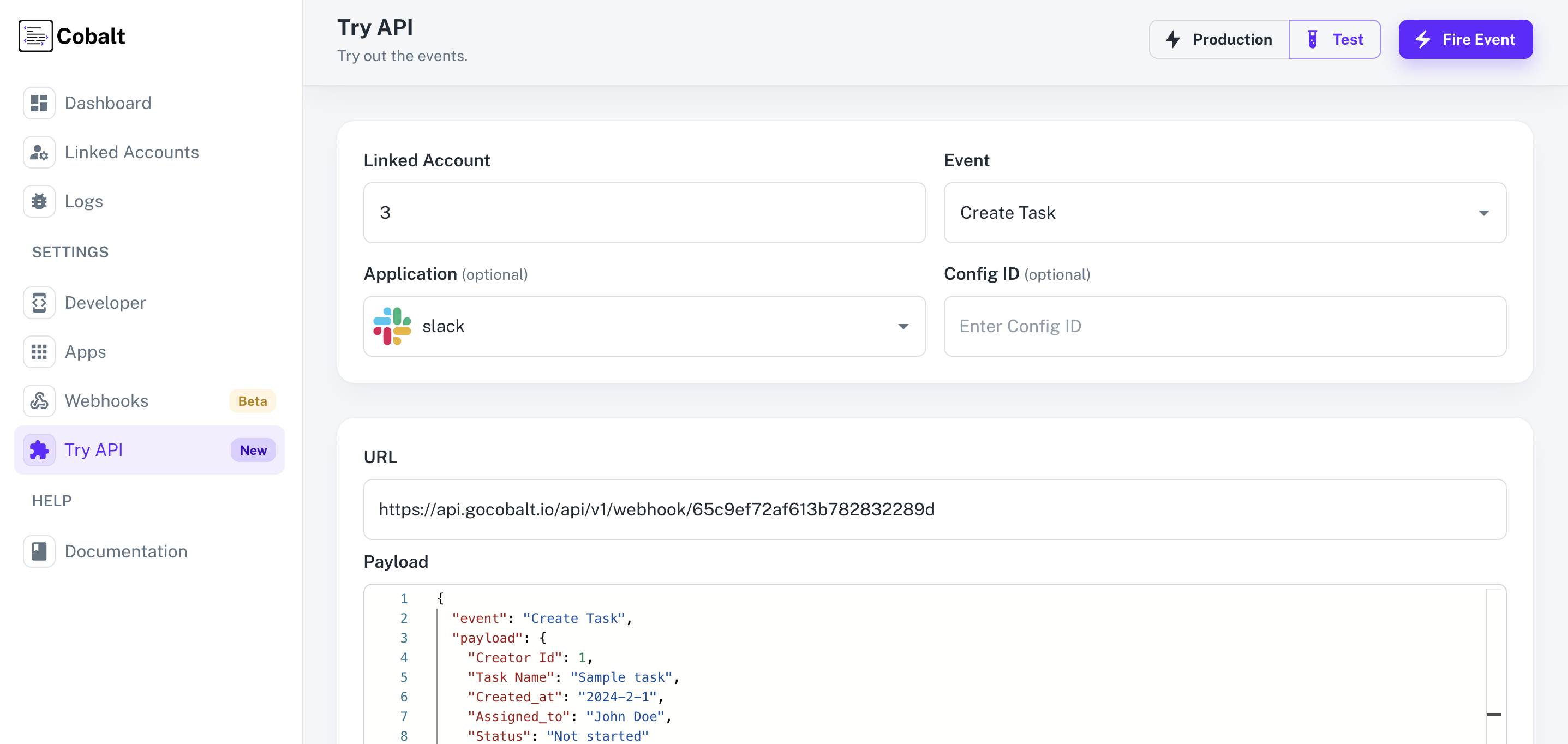
- Navigate to
Try API in Cobalt.
- Choose the Linked Account created to test the workflow, select the Event and Slack as the Application.
- Click on the
Fire Event button in the top right.
- You can check the status of the event by navigating to
Logs > Events in Cobalt.
Congratulations! We have successfully built a Slack integration that sends message from your app to the Linked Account’s Slack.
