

Documentation Index
Fetch the complete documentation index at: https://docs.refold.ai/llms.txt
Use this file to discover all available pages before exploring further.
Pre-requisites
- Refold account - You have an active account on Refold
- Linked account - You have created a linked account in Refold (refer to guide)
Linked account is required to test the MCP connection.
Creating MCP Servers
Configure Application
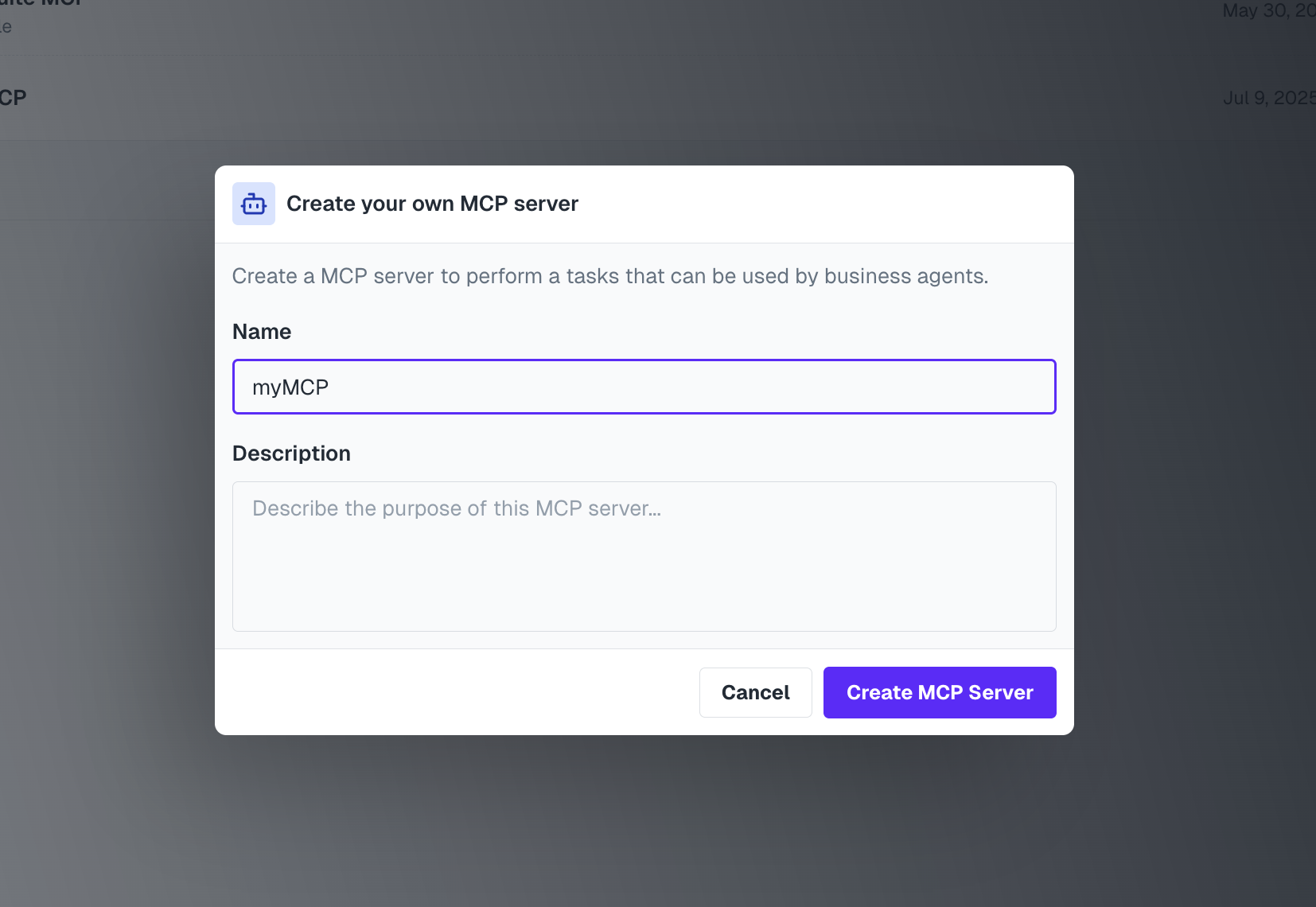
- Use the setup guide of each application
- Define the scopes required for the application
- This ensures your MCP server has the right level of access
Connector Setup Guide
Complete guide for setting up connectors
Create and Configure MCP Server
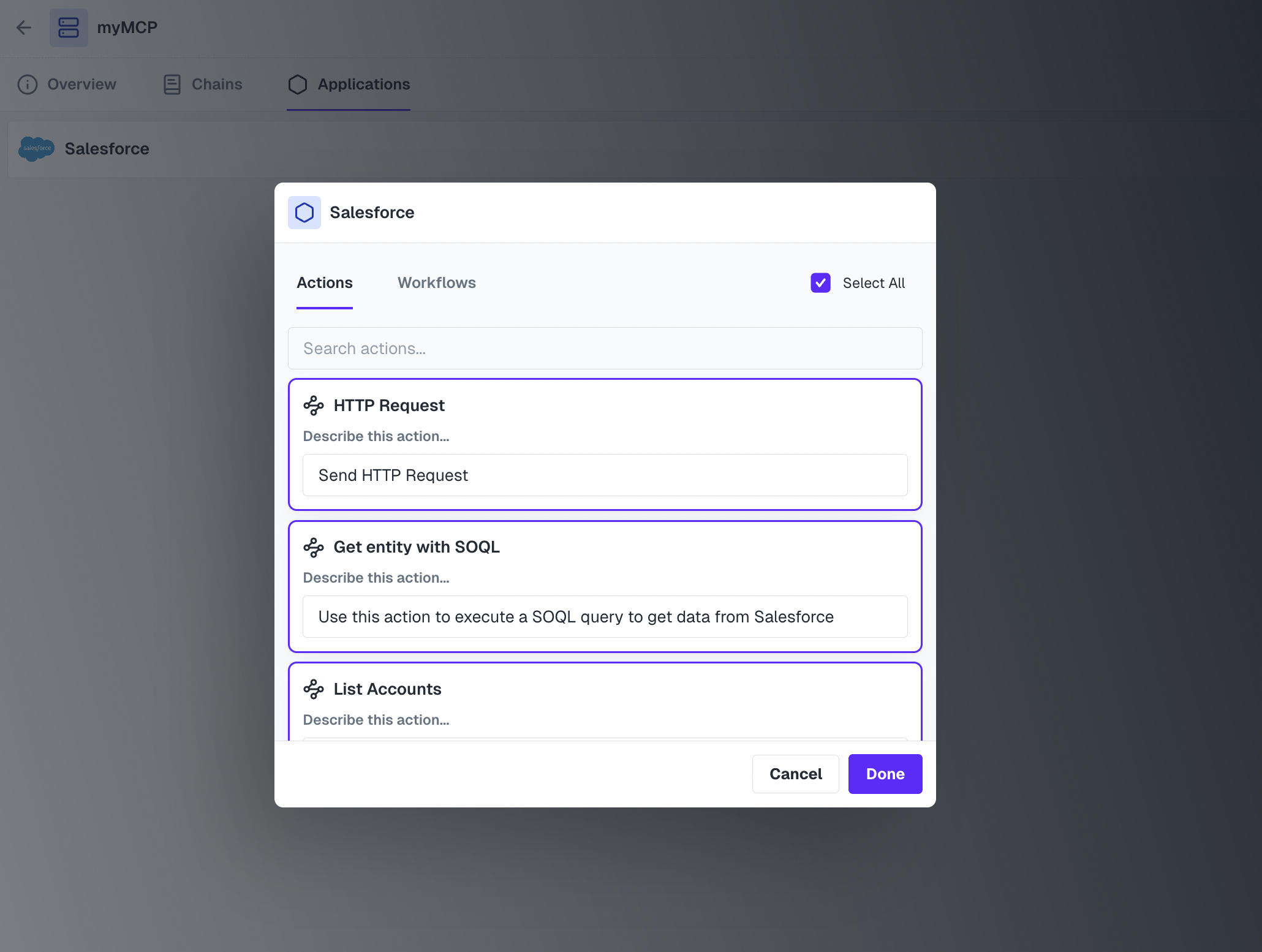
- Go to MCP tab and add a new MCP server
- Add your name and description
- Add the application and workflow to the MCP server
- Save changes
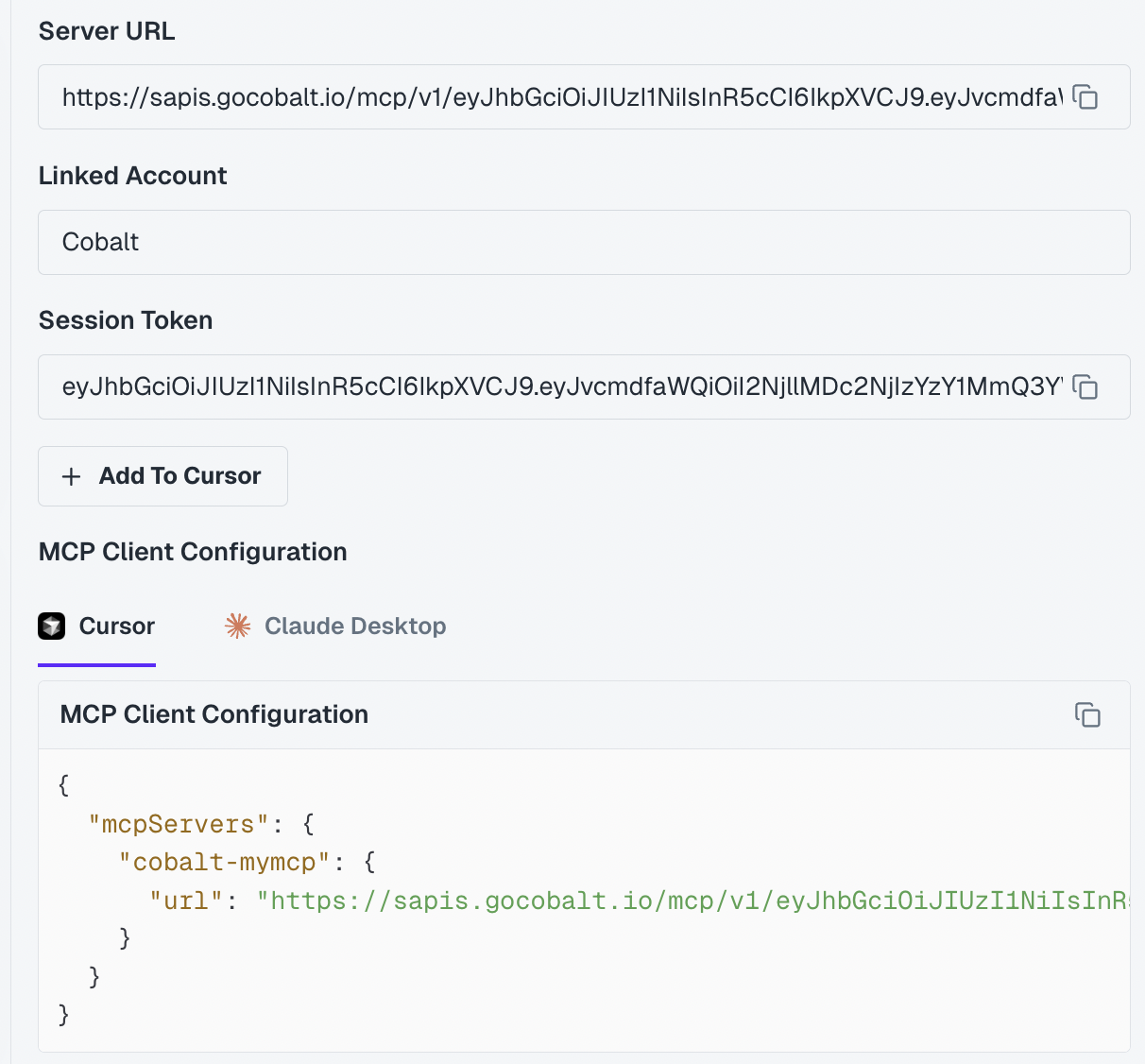
Configuring Authentication
Authentication setup:- Follow the authentication flow guide for your users
- Ensure proper user permissions and access levels
Auth Flows Guide
Complete guide for setting up authentication flows for your users